
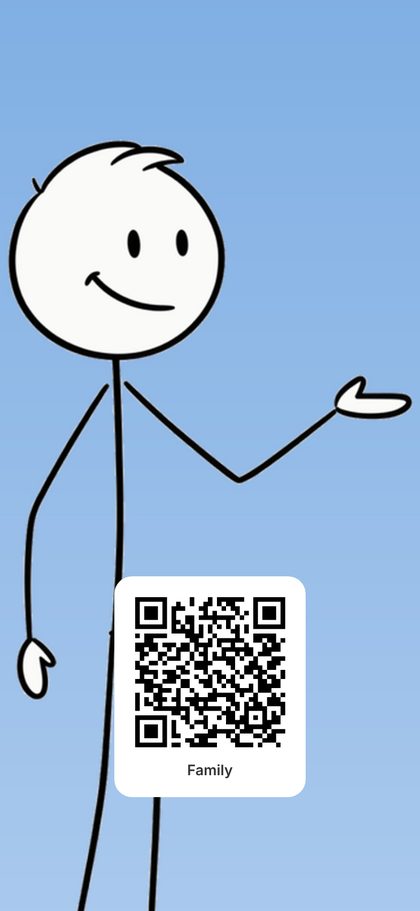
Put your QR code
on your lock screen.
Your photo, your QR code at the bottom. Hold the phone up, they scan, they land on your connect page — no app to open, no card to dig for. Made in Nimbus Pages in a minute.
Make it in Nimbus Pages
Sign in on your phone, then follow the steps.
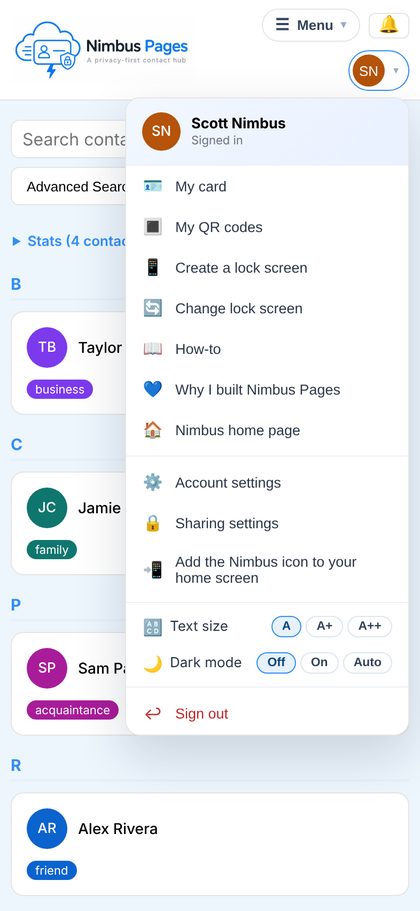
Tap your picture (top right) and choose Create a lock screen.
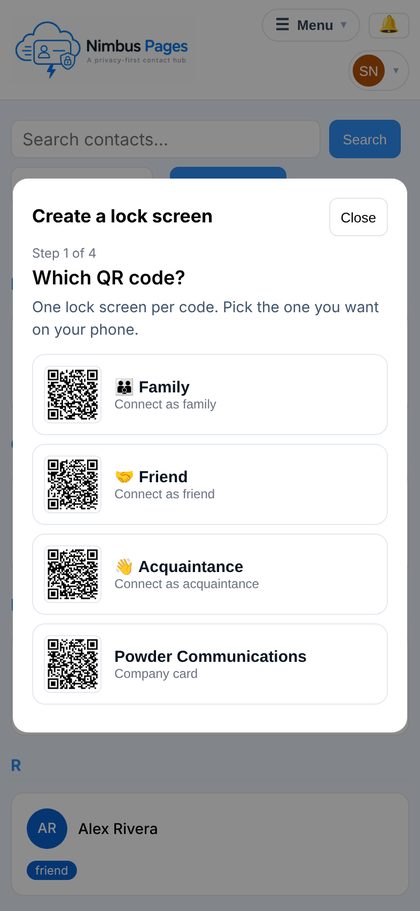
Pick the QR code you want on your phone — Family, Friend, Acquaintance, or a company.
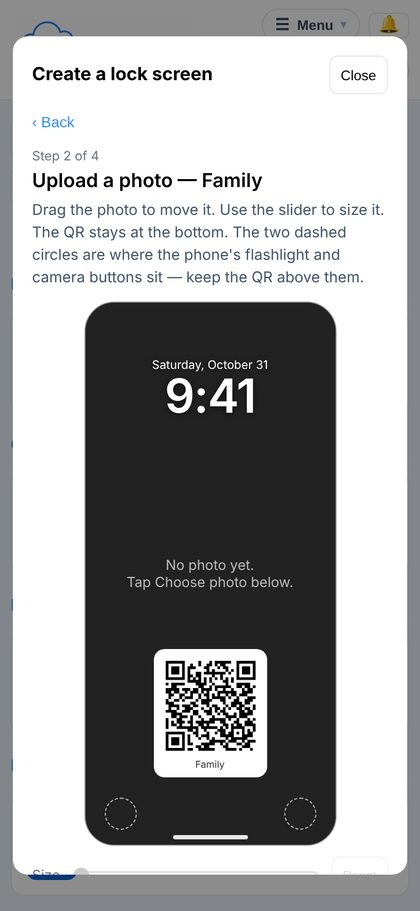
Tap Choose photo and pick a picture from your phone.
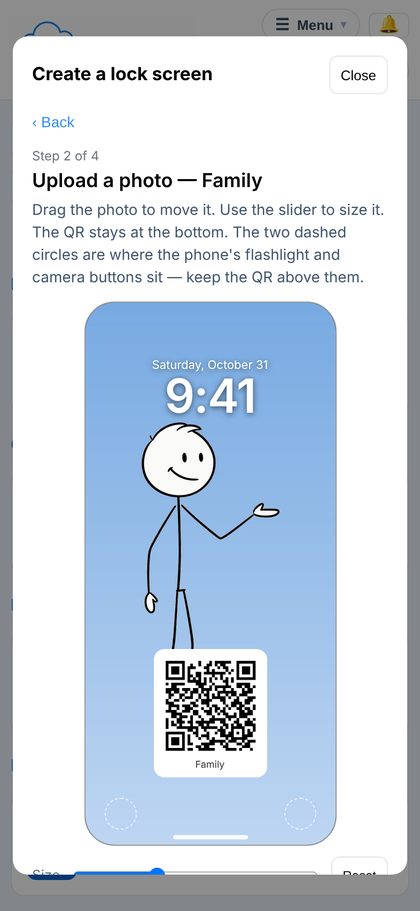
The photo fills the frame. The QR stays at the bottom; the two dashed circles are where the flashlight and camera buttons sit.
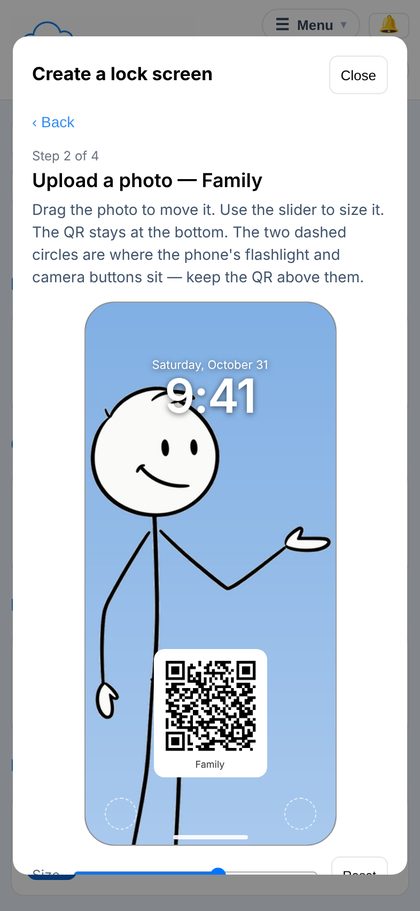
Drag the photo to move it. Use the Size slider to make it bigger or smaller. Reset puts it back. Then tap Next.
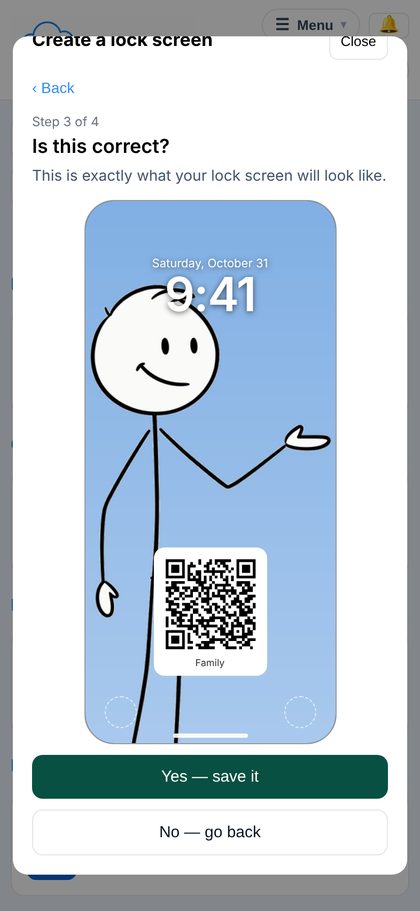
Is this correct? This is exactly what your lock screen will look like. Tap Yes — save it.
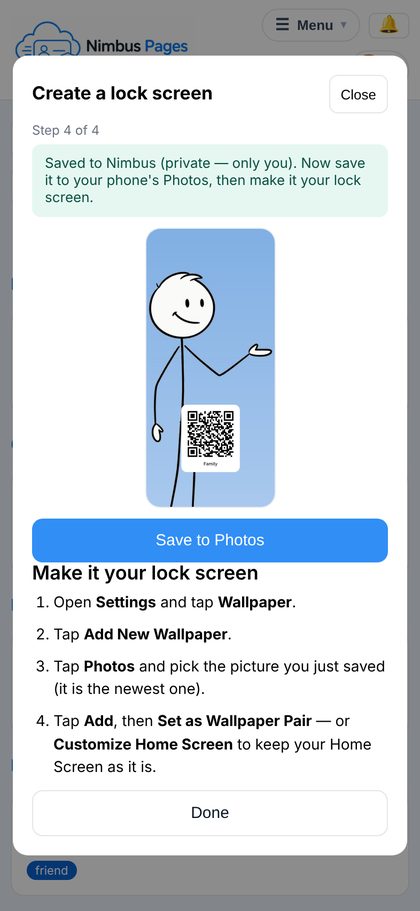
Saved to Nimbus (private — only you). Tap Save to Photos; the share sheet opens — choose Save Image. On a computer the button says Download the picture.
This is the picture that is now in your Photos.
Or make it on a computer
Sign in at nimbuspages.com on your computer — bigger screen, same steps — then get the picture onto your phone.
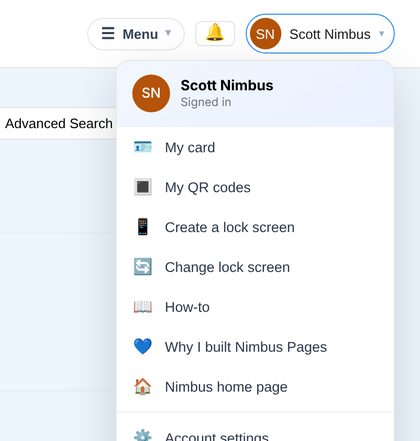
Sign in to Nimbus Pages on your computer. Click your picture (top right) and choose Create a lock screen.
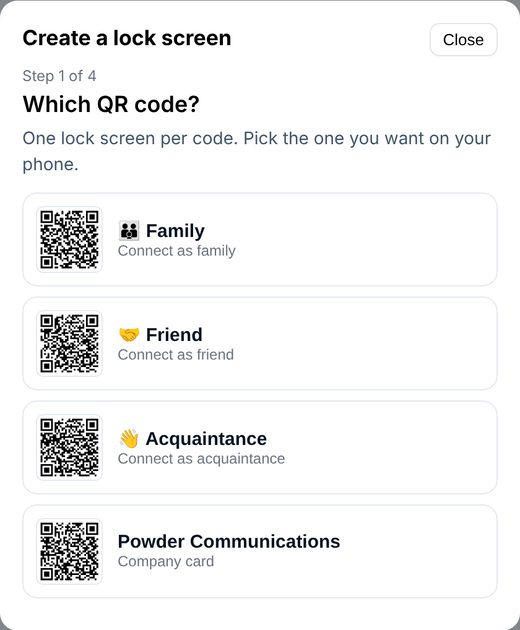
Pick the QR code you want on your phone — Family, Friend, Acquaintance, or a company.
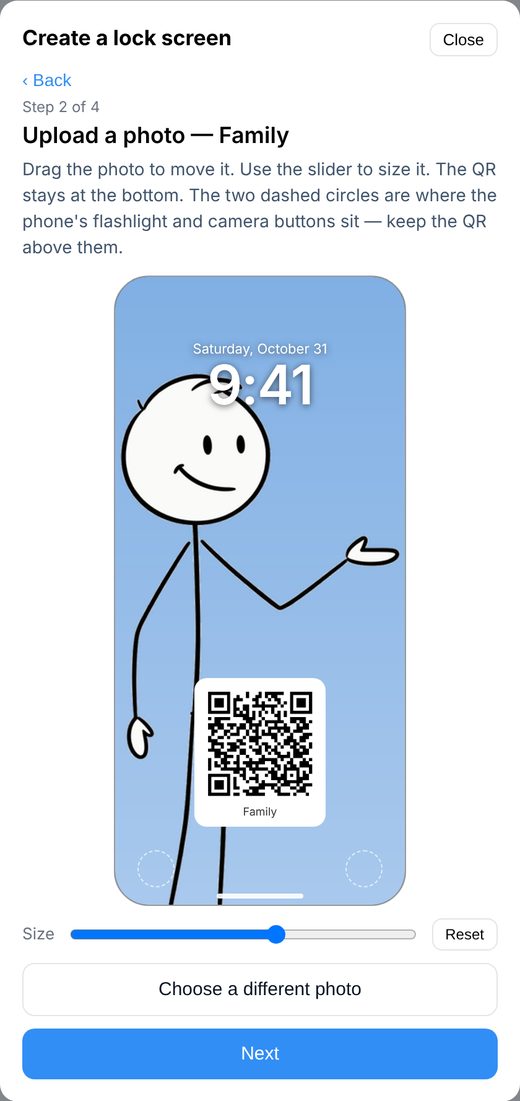
Click Choose photo and pick a picture from your computer. Drag the photo to move it, use the Size slider to make it bigger or smaller, Reset puts it back. Then click Next.
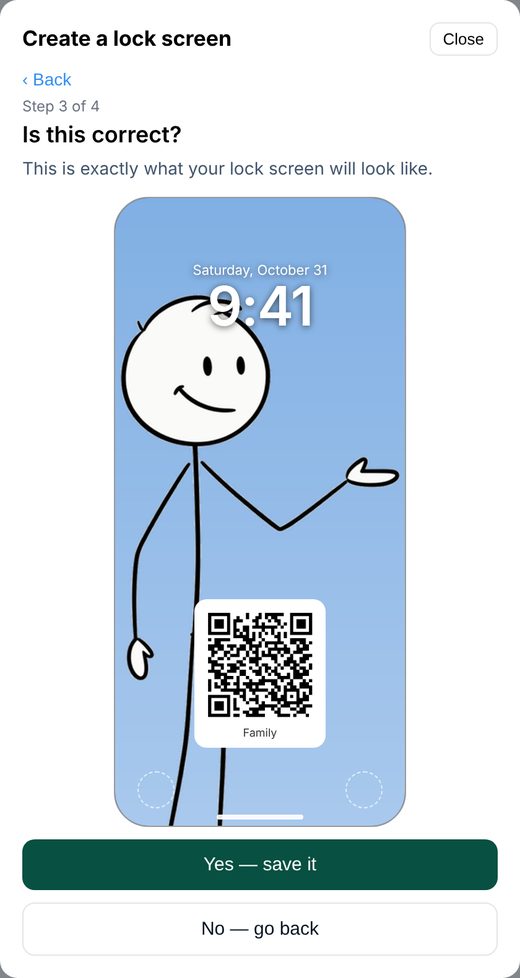
Is this correct? This is exactly what your lock screen will look like. Click Yes — save it.
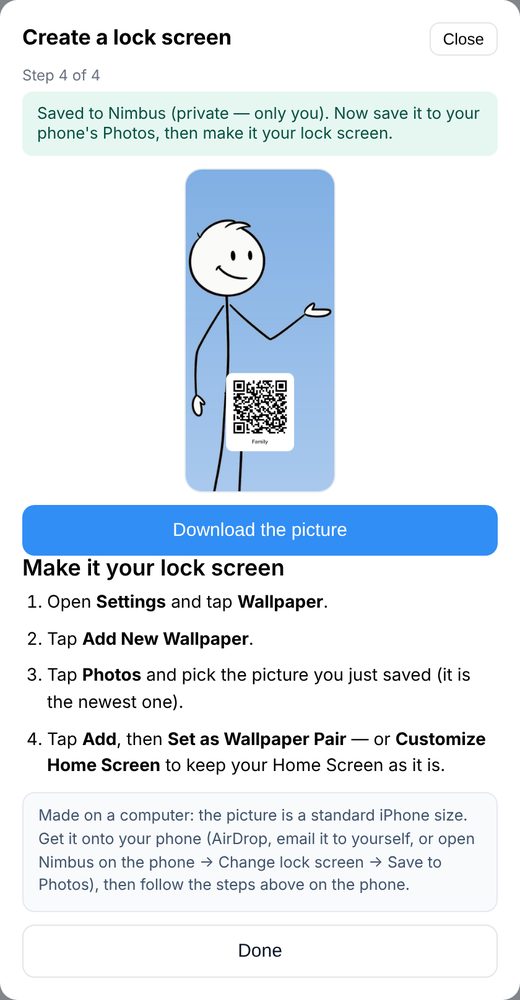
Saved to Nimbus (private — only you). Click Download the picture.
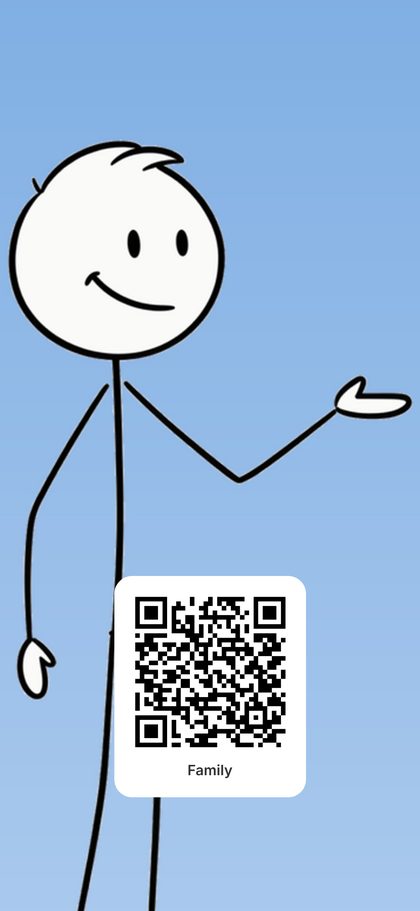
This is the picture, now in your Downloads folder as nimbus-lock-screen-family.png (named for the QR code you picked), already the size of an iPhone screen. Get it onto your phone — easiest: it is already saved in Nimbus, so on the phone open Nimbus → tap your picture → Change lock screen → tap it → Yes → Save to Photos (the picture opens in a new tab — press and hold it and choose Save to Photos). Or email the picture to yourself and save it from the email, or AirDrop it from a Mac. Then follow the iPhone or Android steps below.
Make it your lock screen
iPhone
- Open Settings and tap Wallpaper.
- Tap Add New Wallpaper.
- Tap Photos and pick the picture you just saved (it is the newest one).
- Tap Add, then Set as Wallpaper Pair — or Customize Home Screen to keep your Home Screen as it is.
To switch later: lock the phone, wake it, touch and hold the lock screen, swipe to the picture you want, tap it.
Android
- Open the picture you just saved in your Photos (or Gallery) app.
- Tap the ⋮ menu and choose Use as → Wallpaper, then Lock screen.
The exact words differ by phone.
Change it any time
Tap your picture → Change lock screen. Your saved lock screens are listed — tap the one you want today, then Save to Photos if it is not on this phone yet.
Not a member yet?
Create your free Nimbus card first — your QR codes come with it.
Create my free card