Sync with Google / Gmail
About two minutes. You connect once; after that Nimbus keeps your Google contacts and your Nimbus card in step on its own.
First time
1
Open Sync and tap “+ Connect account”, then Google.
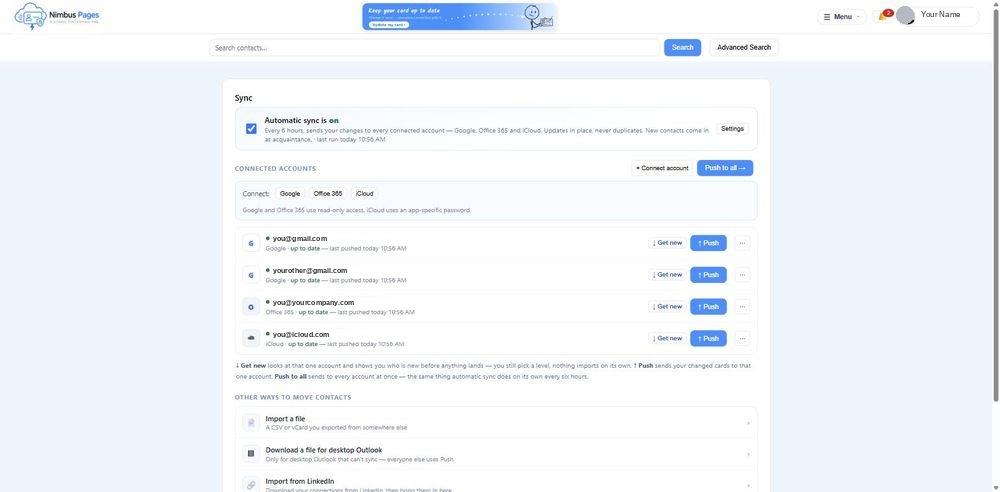
2
Nimbus reminds you of the one thing Google gets wrong: the permission box starts unticked. Tap “Continue to Google”.
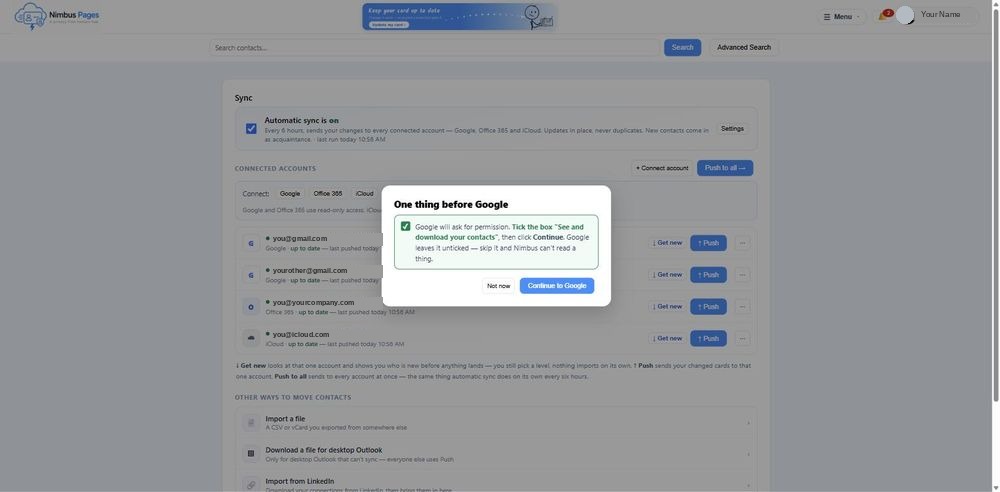
3
Google asks which account. Pick the one your contacts actually live in. More than one Google account? Do this one first — you can add the other one after.
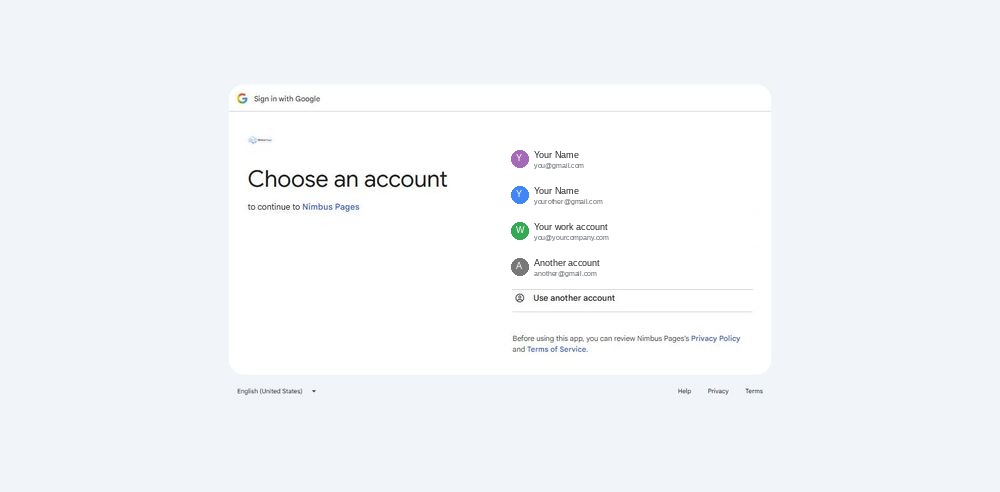
4
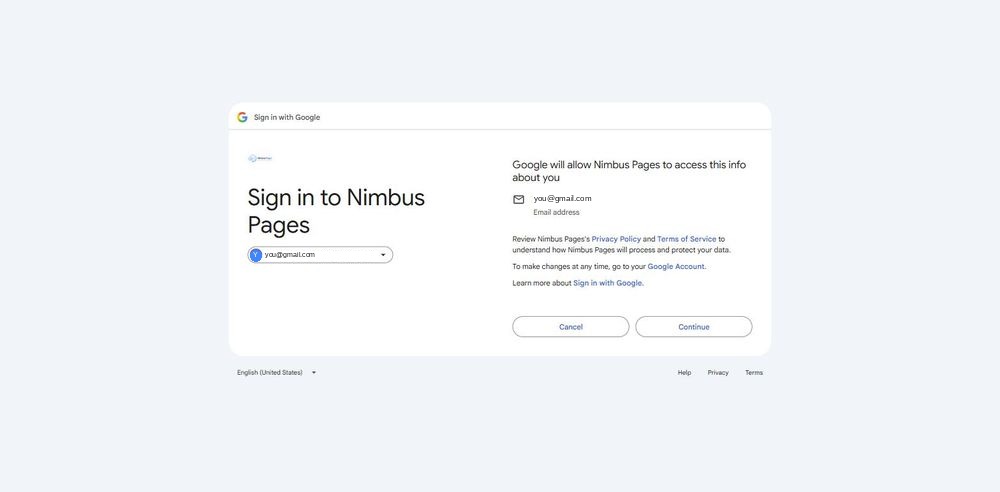
Google confirms you’re signing in to Nimbus Pages. Continue.
5
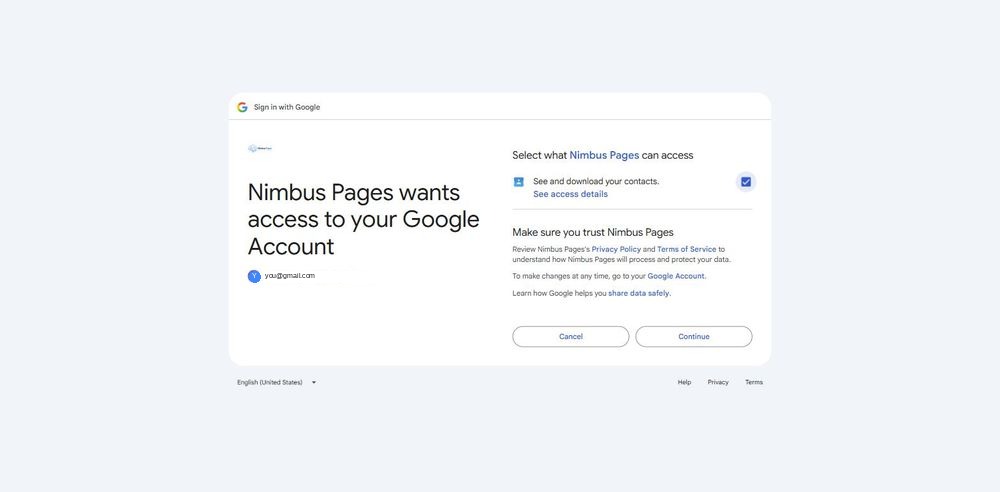
Tick “See and download your contacts”, then Continue. If you leave it unticked, Nimbus can’t read anything and you’ll land back with an empty list.
6
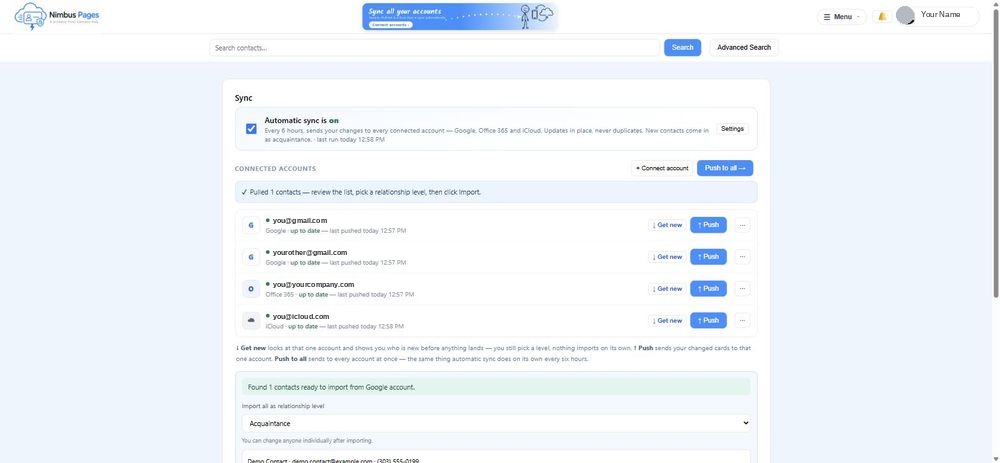
You’re back in Nimbus with your Google contacts listed. Pick a relationship level (Acquaintance is fine to start — you can change people later) and tap Import. Nothing is saved until you do.
7
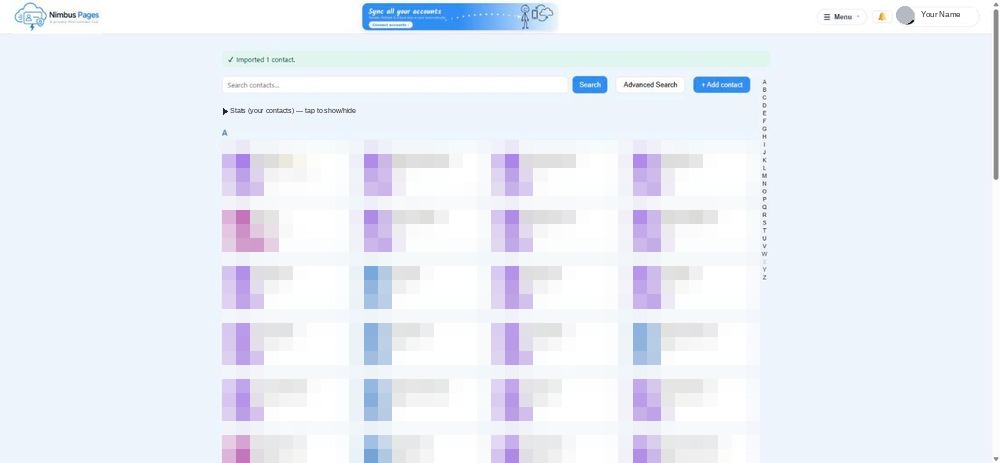
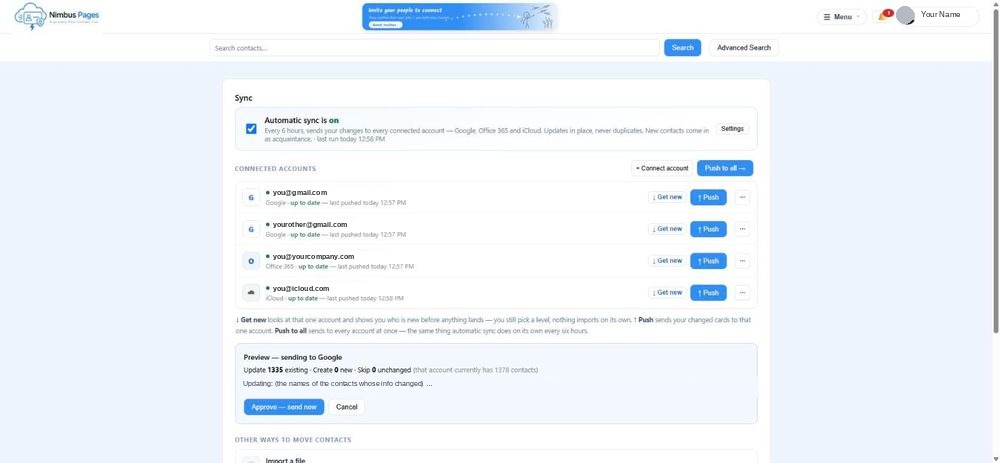
Your contacts are in. Now send your own card back: on the Sync page tap “↑ Push” on your Google row. The first time, Google asks once more — this time for permission to update contacts (that’s what lets Nimbus fix a stale entry; Nimbus never deletes).
8
Nimbus shows exactly what it will change before it does it — “Update N existing · Create M new” — and waits for you to approve.
After that
Automatic sync runs every 6 hours: new Google contacts arrive in Nimbus as Acquaintances, and your changes go back to Google. It never pushes anything you haven’t approved once.
When someone’s number or address changes, fix it once on their Nimbus card — the sync carries it to Google.
Second Google account? Sync → “+ Connect account” → Google → pick the other account. Each account gets its own row.
“↓ Get new” on the Google row shows who is new in Google before anything lands. “↑ Push” sends your changed cards to that account.
If it didn’t work
I landed back with no contacts.
The permission box was left unticked. Tap “+ Connect account” → Google again and tick “See and download your contacts” this time.
It pulled the wrong account.
You picked the wrong Google account at the chooser. Connect again and pick the other one — both can stay connected.
Push says “needs reconnect.”
Google’s update permission wasn’t granted yet. Tap ↑ Push again and approve the second screen (“See, edit, download…”). Nimbus only updates in place; it never deletes.
Rather be walked through it?
Sign in at nimbuspages.com → Sync → Help me set up sync. The assistant does these steps with you, one at a time, and waits while you do each one.
Need a hand?
Email support@nimbuspages.com.