
Sync with Outlook / Microsoft 365
About two minutes. Works with a Microsoft 365 work account or a personal Outlook.com / Hotmail account.
First time
1
Open Sync and tap “+ Connect account”, then Office 365.
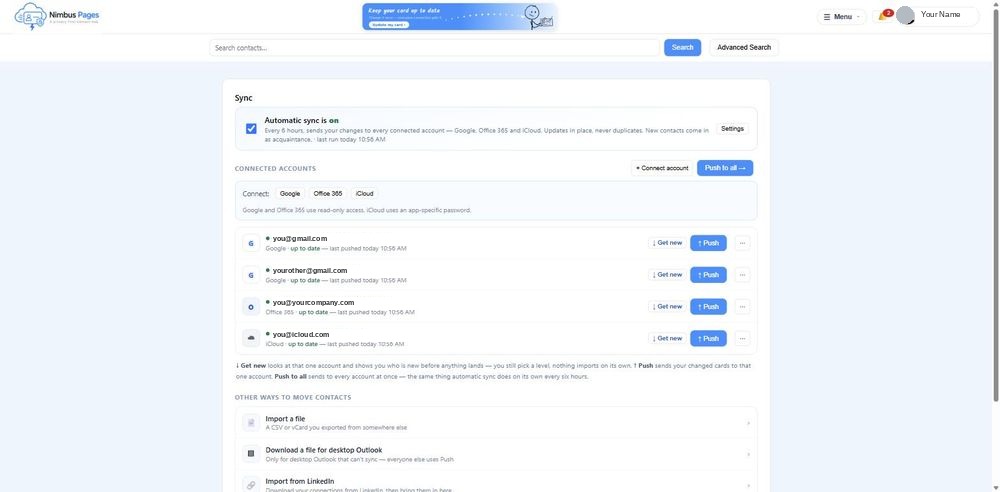
2
Microsoft asks you to sign in (or pick the account if you’re already signed in). Use the account your contacts live in.
3
Microsoft shows the permissions Nimbus is asking for — reading your contacts. Accept.
4
You’re back in Nimbus with your Outlook contacts listed. Pick a relationship level (Acquaintance is fine to start) and tap Import. Nothing is saved until you do.
5
Send your card back: tap “↑ Push” on your Office 365 row. The first time, Microsoft asks once more for permission to update contacts. Nimbus updates in place and never deletes.
After that
Automatic sync runs every 6 hours: new Outlook contacts arrive in Nimbus as Acquaintances, and your changes go back to Outlook.
Fix a person once on their Nimbus card — the sync carries it to Outlook.
Desktop Outlook that isn’t connected to Microsoft 365 can’t sync — use “Download a file for desktop Outlook” on the Sync page instead.
If it didn’t work
Microsoft says my organization needs to approve this app.
Your company’s admin controls which apps can read contacts. Ask them to approve “Nimbus Pages”, or connect a personal Microsoft account instead.
It signed me into the wrong Microsoft account.
Microsoft reuses the browser’s current sign-in. Sign out at office.com first, then connect again.
Push says “needs reconnect.”
The update permission wasn’t granted yet. Tap ↑ Push again and accept Microsoft’s second screen.
Rather be walked through it?
Sign in at nimbuspages.com → Sync → Help me set up sync. The assistant does these steps with you, one at a time, and waits while you do each one.
Need a hand?
Email support@nimbuspages.com.